
Hosted Sessions
Everything you need to know in order to have a successful Hosted Session.
Hosted sessions allow you to conduct eye-tracking sessions (for any type of study), see the participant's gaze live, and talk with your participant through the platform. You hear the participant's microphone live while they share their screen, and the participant hears your microphone live, so you can give instructions during the session without opening a separate app. Everything is recorded, so you can later watch the gaze-recording and your conversation during the test.
NOTE: RealEye participants can't participate in the Hosted Sessions.
To use this feature, click on the arrow beside the "Copy" button by the participation link and choose the "Start Hosted Session" option.
Then you'll see the following screen (you may need to allow microphone access as we record your voice as well during the session - please make sure that you have set the correct microphone, the same applies to your participant):
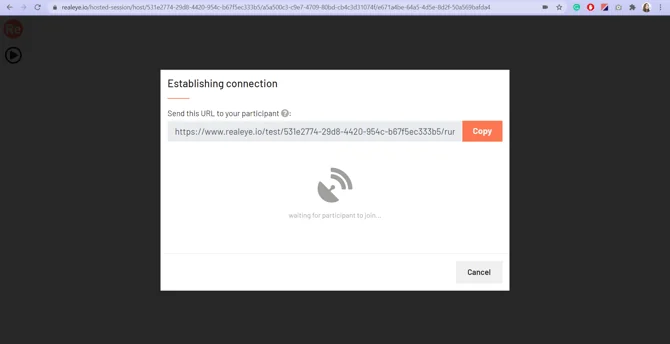
Your microphone starts unmuted. Use the microphone button in the left panel to mute or unmute yourself while talking with the participant - when it turns red with a slash, the participant cannot hear you.
Copy the link and send it to your participant. Keep using the same link if the participant needs to reload the page or restart setup. Once he/she clicks and agrees to share the screen and audio, wait for the connection to establish.
If the connection is interrupted, the host sees a Participant connection lost message. When the participant is ready, click Restart session. An open participant page reloads automatically; otherwise, the participant can reopen the same link. The participant starts again from setup and calibration, while the host recording continues as one recording until the successfully restarted study is finished.
NOTE: It's recommended to turn off other applications using a webcam (i.e., video conference tools) or at least their access to the webcam for the duration of the Hosted Session.
Then you need to start the session:
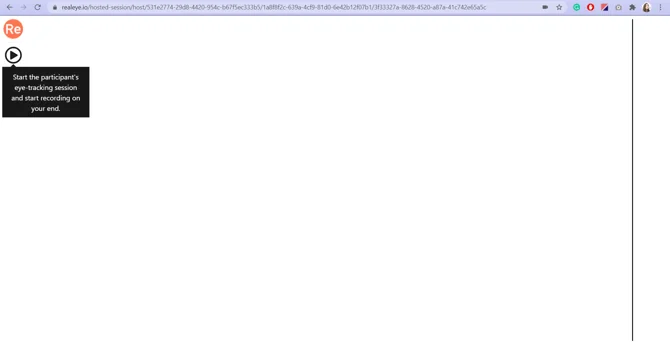
and you'll be able to see the participant's screen immediately:
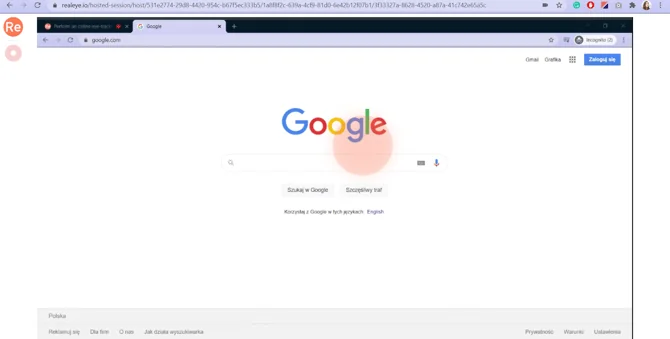
To watch the session after the test is finished, click on the result, on the "Recording" button, and choose the "Host Recording" option.
Hosted Sessions are very demanding regarding your CPU and internet connection speed. Both on the host and the participant side. The host and participant should have a
- PC/Mac with a modern CPU (i.e., 8th gen Intel i5, 3 GHz).
- A modern Intel, GeForce, or Radeon graphics card is recommended.
- At least 4 GB of free RAM (close other software/tools/tabs).
- If you're using a laptop, please plug in the power cord.
- Fast and stable internet connection. At least 10 Mb/s (both download and upload). Connect using a LAN cable instead of WiFi if possible. If you have to use WiFi please make sure you have a strong signal strength).
Please read How to get accurate results? to get the highest gaze precision.
Hosted Sessions usually take more time so make sure that the participant sits comfortably before she/he starts the calibration process.
In case of webcam issues please read How to make a webcam work?