
How to enable camera access in Chrome
When you’re doing a webcam eye-tracking test, you obviously need to enable camera access. Before you dive in, you can run the quick webcam test to confirm your camera works. Usually, you should see a pop-up like this:
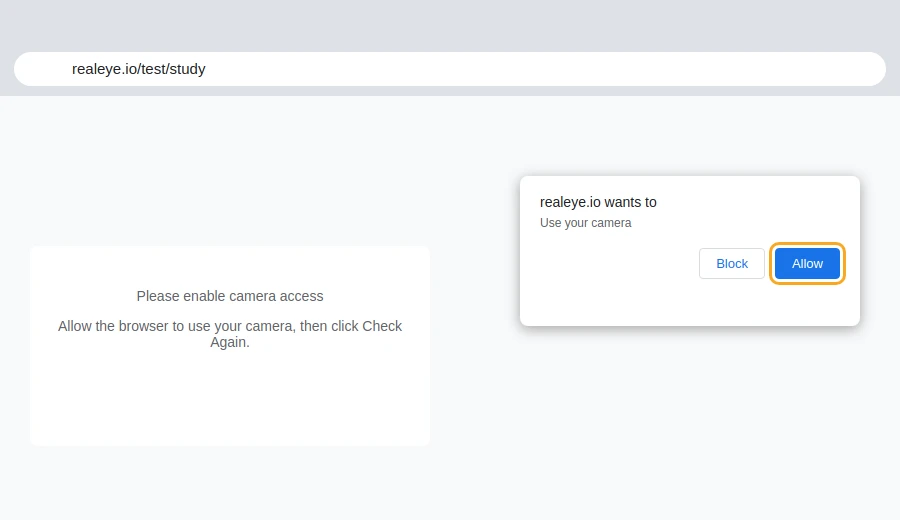
Simply click the ‘Allow’ button and you’re done.
If this pop-up won’t show up click on the lock symbol and go to page settings:
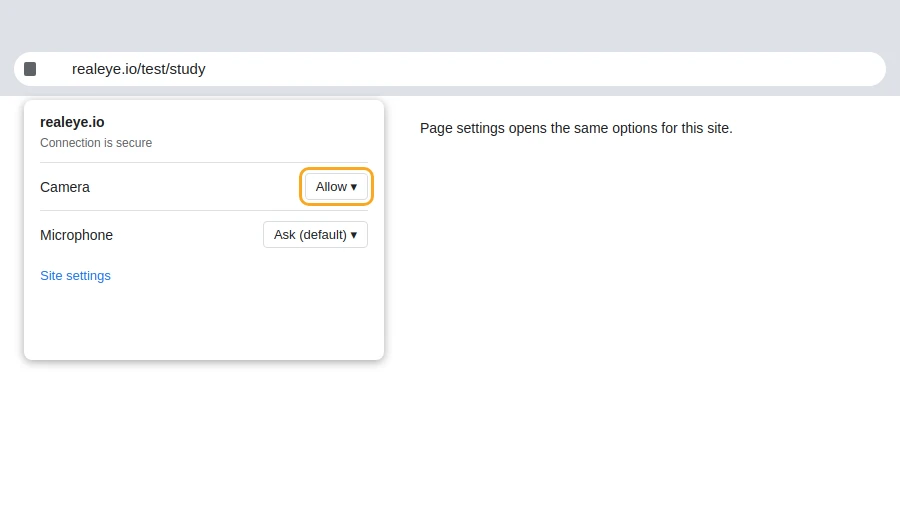
You can also go to Chrome settings like this:
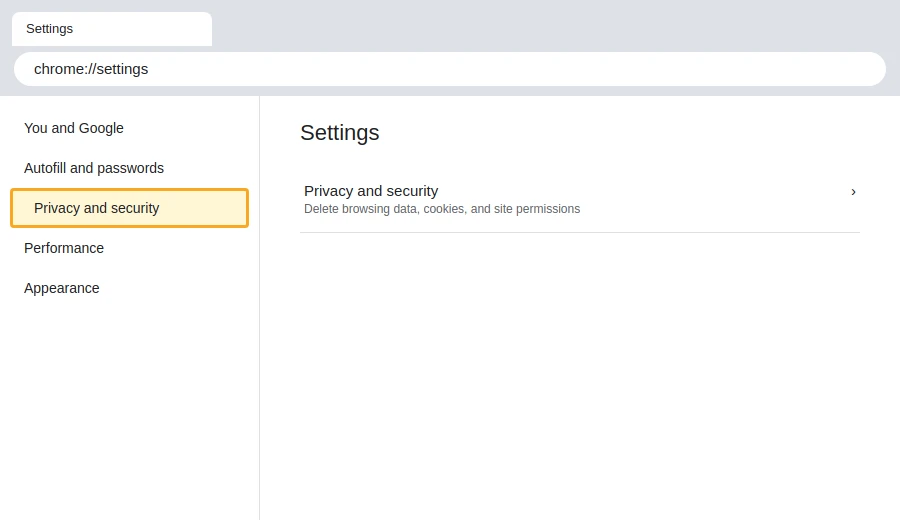
Click ‘Privacy and security', choose 'Site settings', find the camera options, and click it.
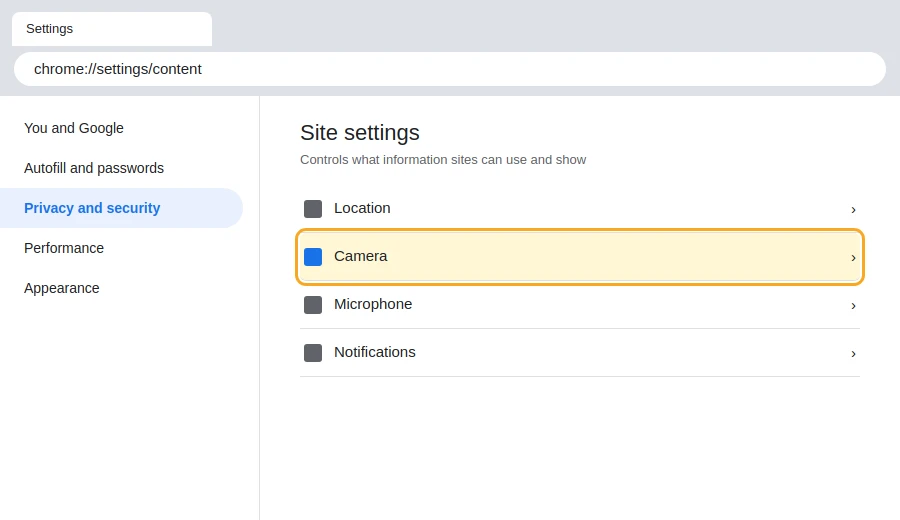
Go back to the study page, refresh it if needed, and proceed with the test.
You can quickly verify that your camera works with our guide, Get your webcam ready for eye-tracking.
If you're still having issues, please read "How to make a webcam to work?".